How to Make a Book in Word 2013
Formatting the book properly in a Word Document is an integral part in the process of printing the book, and with this tutorial it may become the easiest!
There is no one-size-fits-all solution, because the formatting differs and varies from publisher to publisher, and whether the book is meant to be in print or virtual. So you may need to send emails to the publisher, check their website, and so on to find out what their exact specifications are. They may even provide a template, so you wont have to worry about most of the formatting.
Generally formatting is flexible, you usually can choose your own font, upload your own cover, and place elements where you see fit.
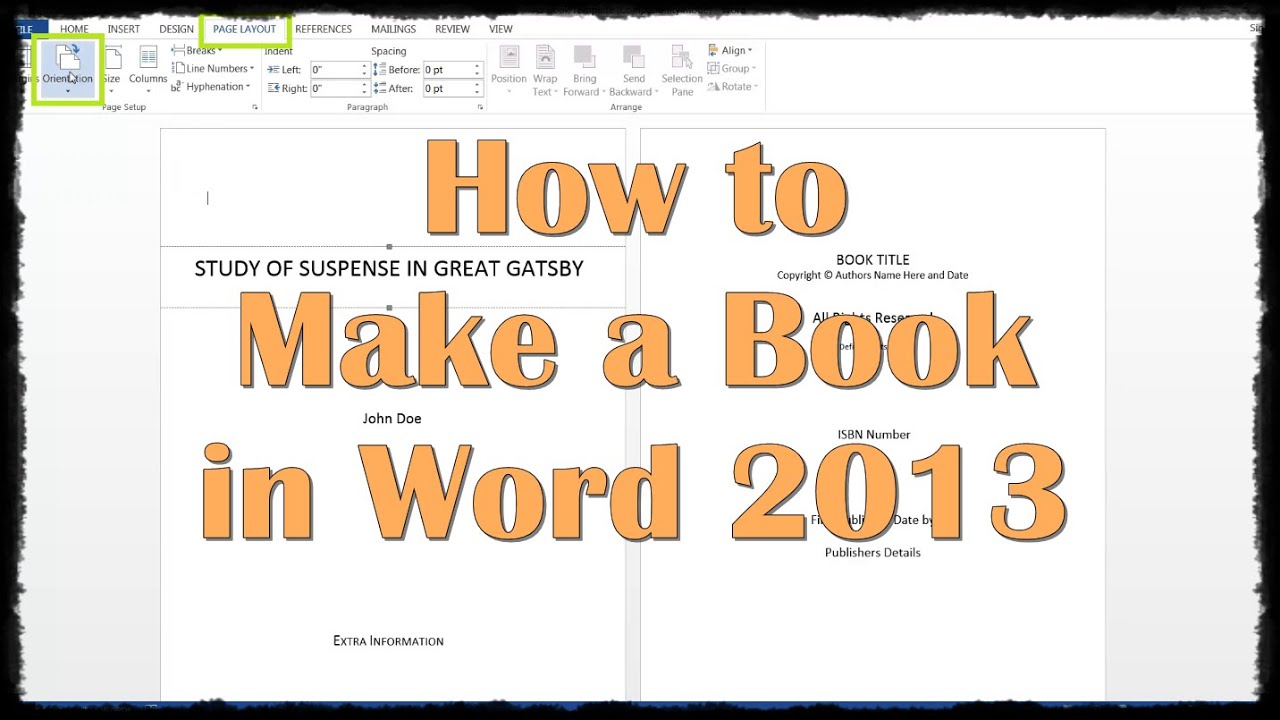
One of the important aspects regarding the formatting is the Orientation. To change it to whatever the publisher specified, go to the Page Layout tab and click Orientation, then Portrait or Landscape
Another thing to look at would be the Margins. The Margins button is found under the Page Layout tab. If the proper specifications do not show up in the drop-down, click Custom Margins to enter the proper margin values
Finally, change the Size to the proper values. Size is also found under Page Layout and depends on what size of paper youre printing on. If you cannot find the right size, click More Paper Sizes to expand your selection Date: 2023-07-08