In this tutorial you are going to learn how to insert a tick mark in Excel.
Step # 1 -- Navigating to the Character Map in Excel
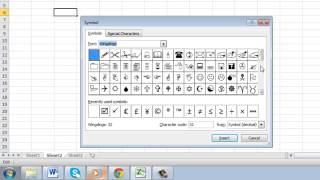
First of all open the sheet where you want to insert the tick mark and navigate the cell where you want to insert it. From the tabs select Insert then in click the Symbol button on the far right. A dialog box will appear and you need to select Wingdings from the drop down list at the top.
Step # 2 -- Inserting a Tick Mark
You will see a wide range of different symbols here and you need to scroll all the way down through this list to the bottom. You will then see several tick mark options and you simply need to click on the one that you want to use. Click Insert and you will see that the symbol will be placed into your sheet. Click Close.
Step # 3 -- Adjusting the Tick Mark
What is useful about inserting the tick mark in this way is that it is text. This means that you can adjust the size and color of the symbol. Click on the Home tab and try adjusting the text size and color of the text to give the check mark a different effect. That's it, you now know how to insert a tick mark in Excel
John: To whomsoever is responsible for the production of the tutorial How to Insert Check Mark Symbolin Excel, I thank you very sincerely for the assistane your tutorial has afforded me. A big Thank You straight from my heart. Date: 2023-07-08