How to Use the SUMIF Function in Excel How to Use the SUMIFS Function in Excel
FBTwitterReddit
video description
Rating: 4.0; Vote: 1
we will teach you how to use the SUM IF function in Excel.
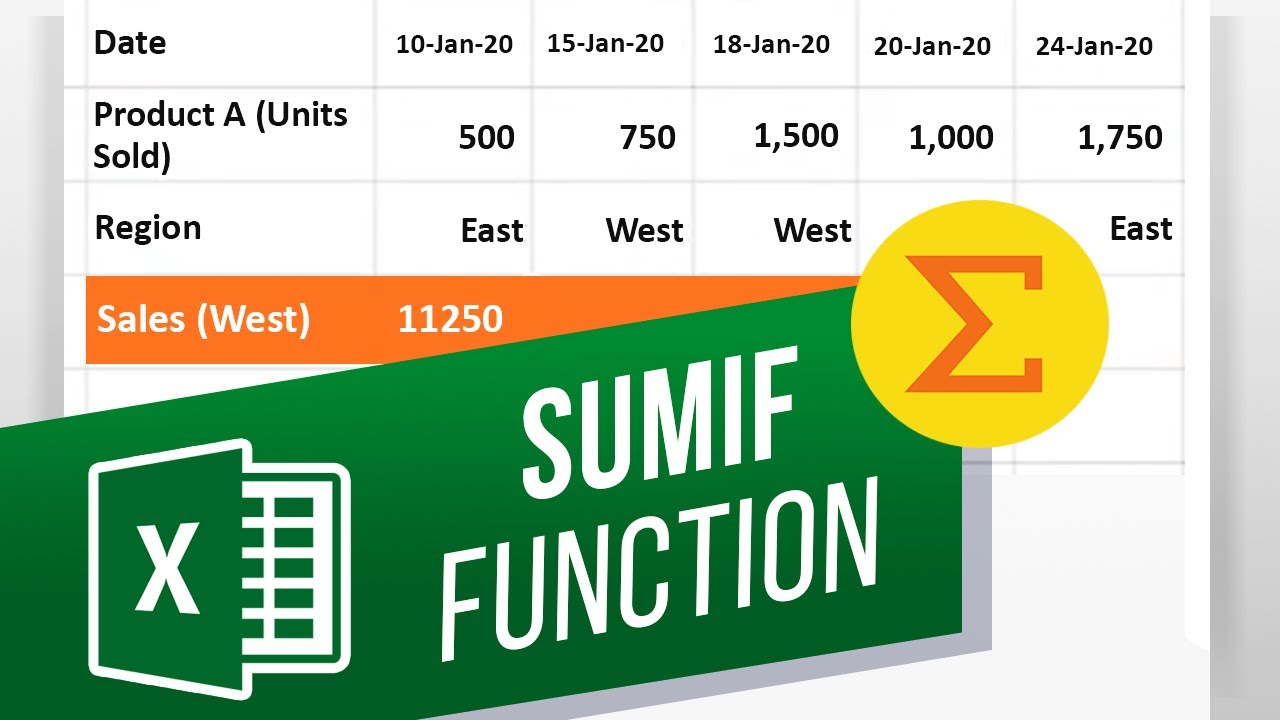
SUM IF allows you to sum a range of values using a single criteria or a condition. To add multiple conditions, you can use the SUM IFS function. So over here, we have a sales forecast sheet. Lets say we want to calculate total sales in the west region and sales made within same region, but within a specific timeframe. For the first one, we will use the SUM IF function, and for the second, where we have added an additional date criteria, we will use the SUM IFS function.
Lets start by clicking on the Insert Function button here. Search for the SUM IF function and select it from the results. First, lets select the range for our criteria. Over here, we will select the cells in the region. For the criteria, we will type in West in inverted commas. Now lets select the range of cells for Product A, which will be summed based on the criteria.
Once we hit enter, you can see here that the formula has added all the sales figures for the West Region only.
Now lets add a date range to this calculation. Lets say we want to calculate total sales in the west region between 15th January and 15th February.
Lets click to the insert button function, search for the SUM IFS function and select it from the results. This allows us to add multiple criterias in a single formula.
For starters, we will select the Sum Range, which would be all the sales figures for Product A. Next, we will select the criteria range which would be all the cells next to Region. For Criteria, we will add West in inverted commas like we did before.
Now we will select the range for the second criteria, which would be all the cells containing the date.
We want the criteria to pick values from the lowest date. For that we will add greater than and equals to in quotes. Next, lets insert ampersand and reference the cell with the lowest date.
Next, we will add a similar criteria and the only difference would be that we will be adding less than and equals to in the criteria and reference the highest date.
Hitting enter will calculate total sales in the West region between 15th of January and 15th of February Date: 2023-07-08