Calculate Percentages in Excel Calculate a Percentage as Proportion Calculate Percentage Change
FBTwitterReddit
video description
Rating: 4.0; Vote: 1
you will learn how to Calculate Percentages in Excel.
The term per cent is derived from the Latin per centum, meaning by the hundred. Lets take a look at how to calculate the percentage in Excel.
The formula for percentage is very simple. In our case, we have a cell of Items Entered, and Items sold. We want to calculate what percentage has already been sold. Lets go to a new cell and add an equal sign, then click choose the items sold cell. Add a divided sign, then click the cell with the overall amount.
Press enter. Now simply click on the percentage sign for the cell and it will show you the percentage.
Now lets look at having percentage as proportion. To do this, simply divide the sample size by the size of the full set. Here is an example. If you score 90 out of 120 in an exam, what is your percentage score? To find out, add an equal sign in the result cell, then choose the first cell and divide by the second cell. Again, change the formatting to percentage and youre done! You should see 75% as the result.
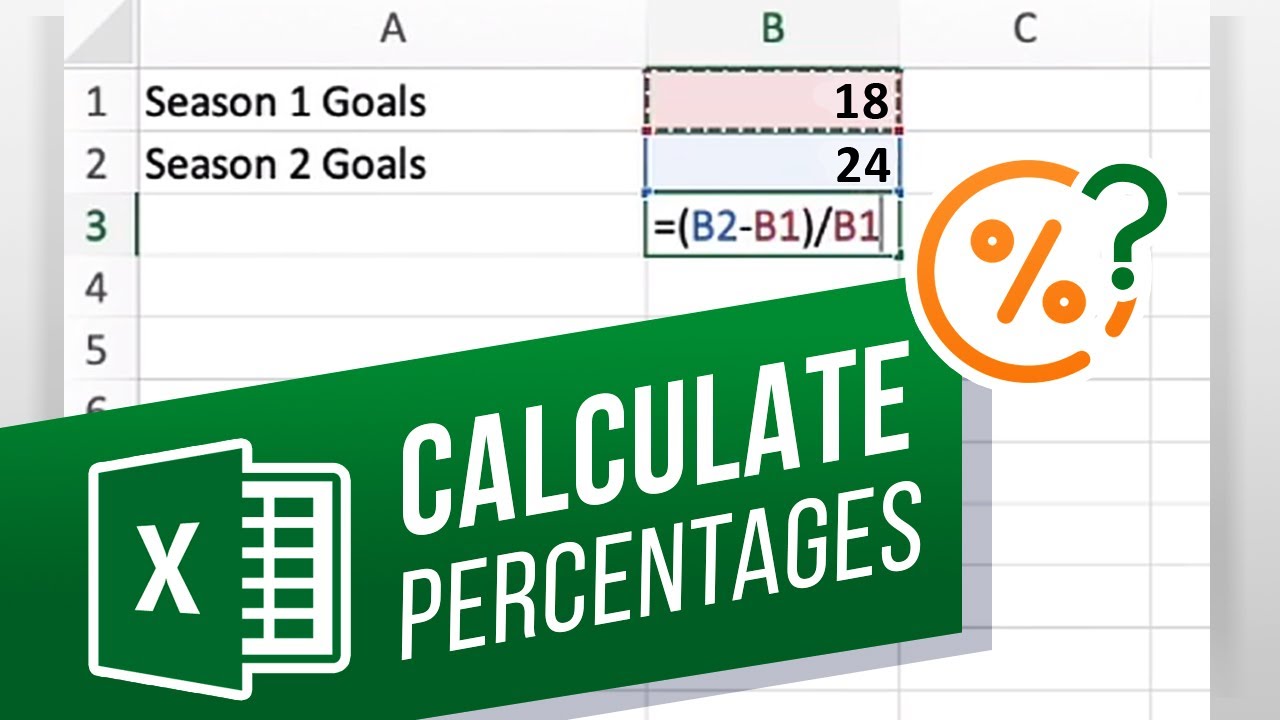
Finally lets look at percentage changes. If you want to calculate the percentage change between value a and value b, this is done using the formula = ( b - a ) / a
For example: Well calculate the percentage change the amount of goals that the team has had over two seasons. Dont forget to change the formatting to percentage.
As you can tell, there is no need to divide by 100, the percentage icon takes care of everything else.
What other Excel tutorials would you like us to make? Date: 2023-07-08