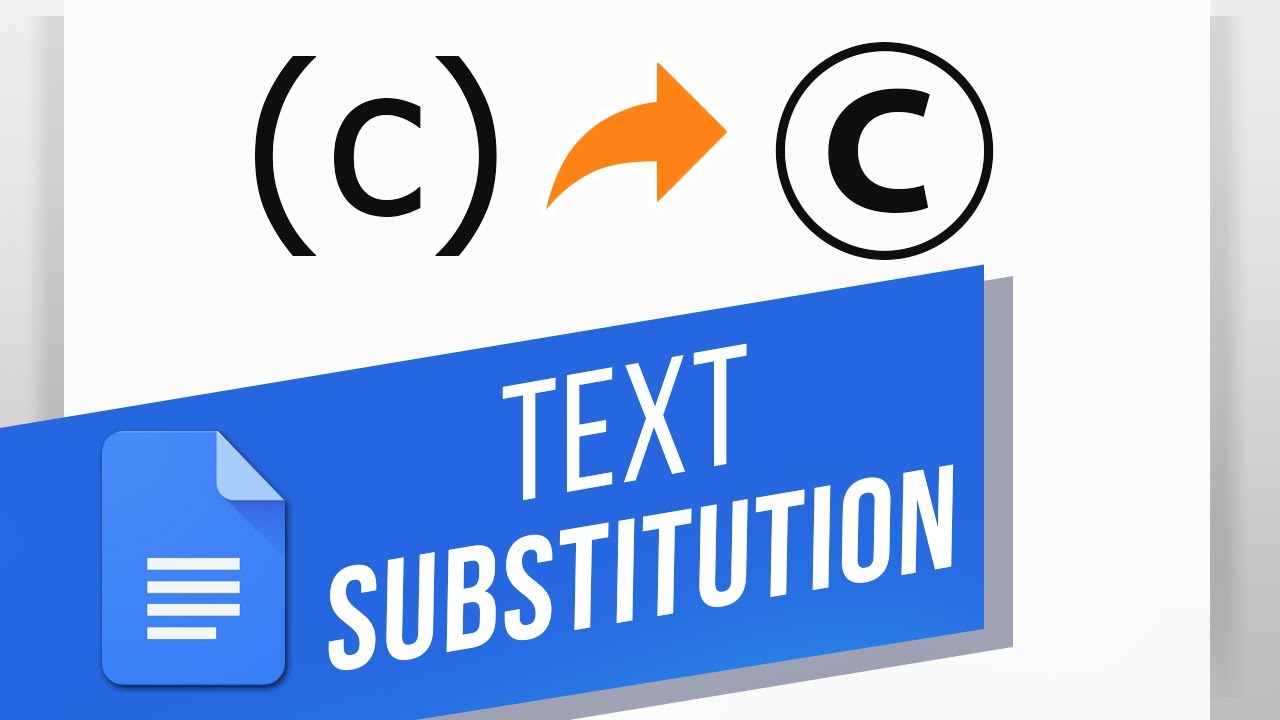
How to Create a Custom Text Substitution in Google Docs How to Use Autocorrect in Google Docs
FBTwitterReddit
video description
Rating: 4.0; Vote: 1
well be showing you how to create custom substitutions in Google Docs.
Custom subs allow you to type a custom message and Google Docs will automatically change it to whatever you set it to change to each time. If there are long phrases or tricky symbols that you dont want to copy and paste each time, use custom subs! Lets create a custom substitution in this Doc.
1. Click Tools - Preferences - Substitutions.
2. In the Replace box, this is what you will type in the Doc that will be changed or replaced automatically.
3. I want to create a sub that will change this text into a pound symbol.
4. The With box is what your text will turn into. Ill go ahead and copy and paste a pound symbol into this box. You can scroll through the list of premade subs if you like for inspiration.
5. Now we can test it out by typing the text and pressing Space or Enter.
You can now make custom subs in Google Docs!
What other time-saving tools do you want to learn in Docs? Date: 2023-07-08