How To Show Hide System / Desktop Icons in Microsoft Windows 8.1 The Teacher
FBTwitterReddit
video description
Rating: 4.0; Vote: 1
How To Show Hide System / Desktop Icons in Microsoft Windows 8.1 The Teacher
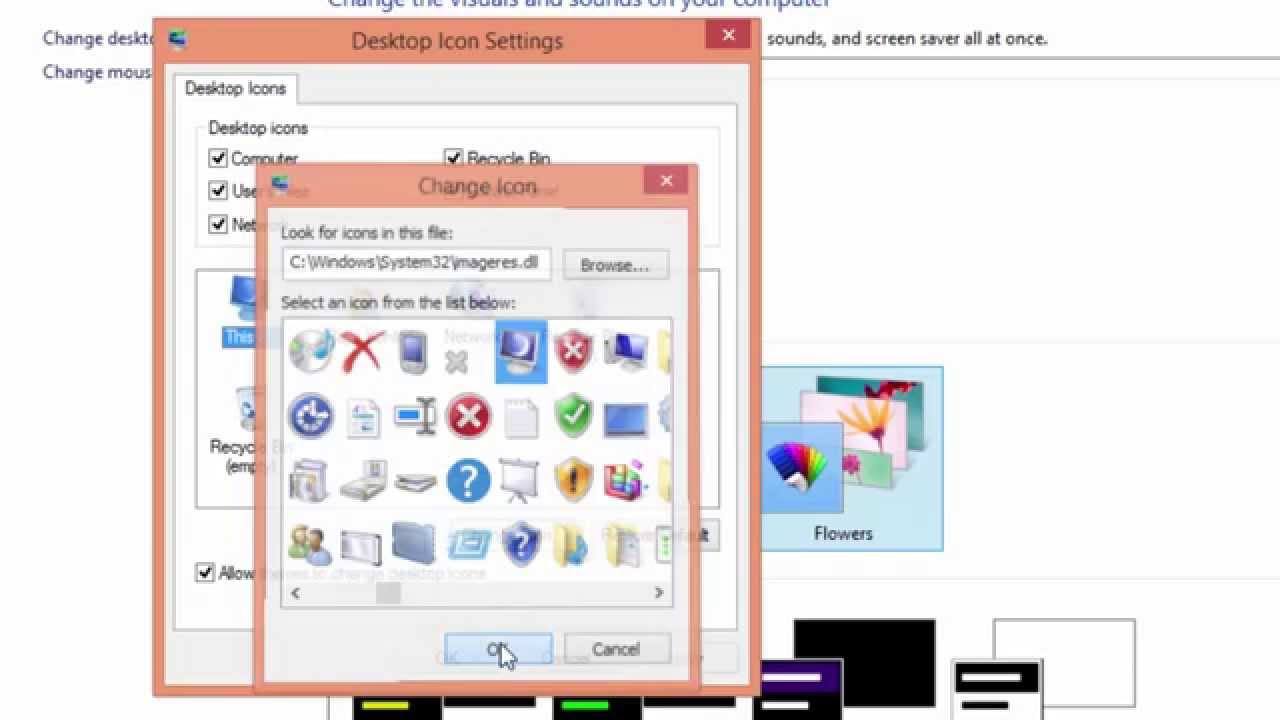
In this Windows 8.1 Tutorial video, you will learn that how easily you can place System Icons on your desktop by changing the Desktop Icons Settings. By default, after a fresh installation Windows 8.1 only display the Recycle Bin icon your desktop. Watch this video to learn, how you can show or hide other icons on your desktop.
I have seen a lot of users placing the shortcuts of Computer, Network, Users, Recycle Bin and Control Panel on the desktop. This is just for your information that there is a lot of difference between the Properties window of a shortcut and the original system icons. For instance, let's say that you need to open Computer Management then you can easily accomplish that my right-clicking on the Computer System Icon and you can find Disk Management in the context menu. Whereas, if you will place shortcuts of those icons then you will always get the same option for every desktop icon which you see on other files and shortcuts. So it is always preferable to place the system icons instead of shortcuts Date: 2022-03-31






 5:16
5:16


