In this video tutorial we will show you how to compress pictures in Word.
Compressing a picture in Word can be a good way to control the overall size of your document. This tutorial will show you how to compress a picture in Microsoft Word.
Step # 1 -- Navigating to the Format Tab
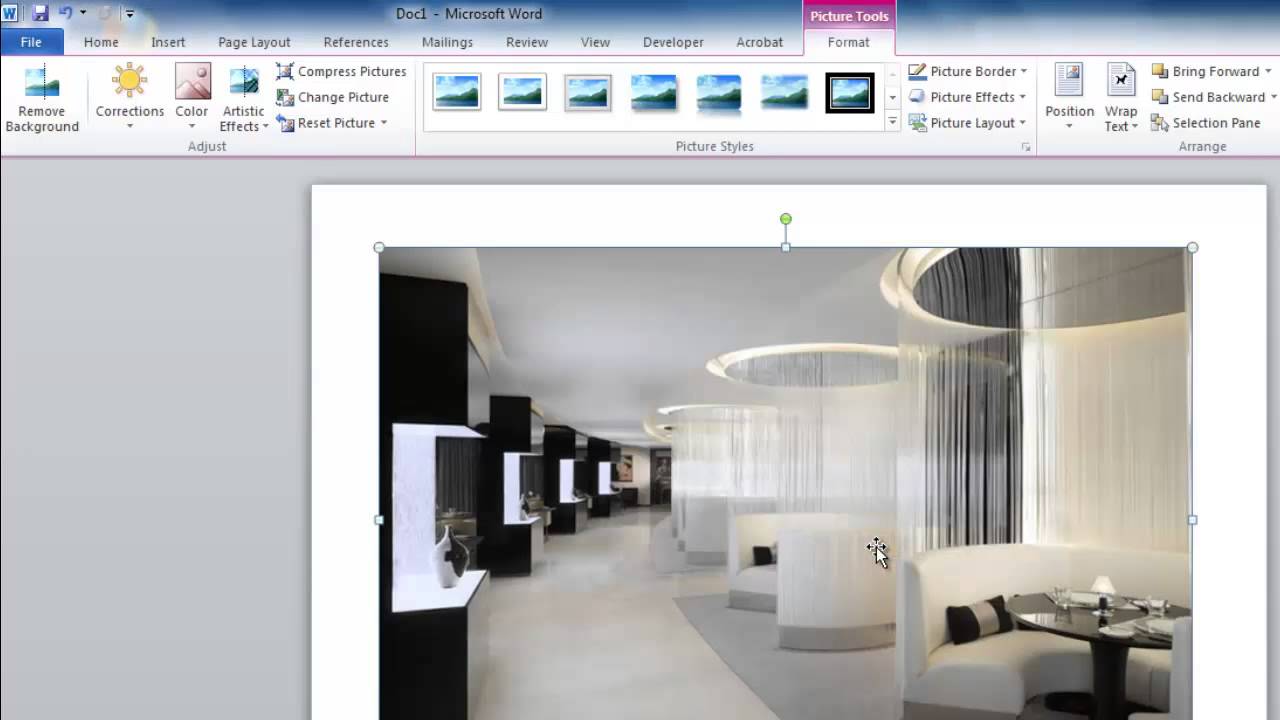
Open Microsoft Word and find the photo that you want to reduce the size of. Here we have a photograph that is at a high resolution and is several megabytes in size. Click on the photo and navigate to the Format tab that has appeared in the toolbar.
Step # 2 -- Compressing a Picture
You will see an option in the Adjust section called Compress Pictures. Click on this. A dialog box will appear giving you several compression options. We are going to choose to reduce the size of the image so that it will work well in an email. Click OK and the compression will be applied and that is how to compress pictures in Word.
Step # 3 -- Resizing Multiple Pictures
It is also possible to compress all of the photographs in a document at once. If we zoom out a bit we can see there are several other photographs here, let's compress them all. Click on any photo, navigate to the Format tab, click Compress Pictures and in the dialog menu make sure the Apply only to this picture option is not checked. Click OK and all the photos will have been resized Date: 2023-07-08