How to Create Drop-Down Lists Using Data Validation in Excel
FBTwitterReddit
video description
Rating: 4.0; Vote: 1
well be showing you how to create a drop-down list in Excel.
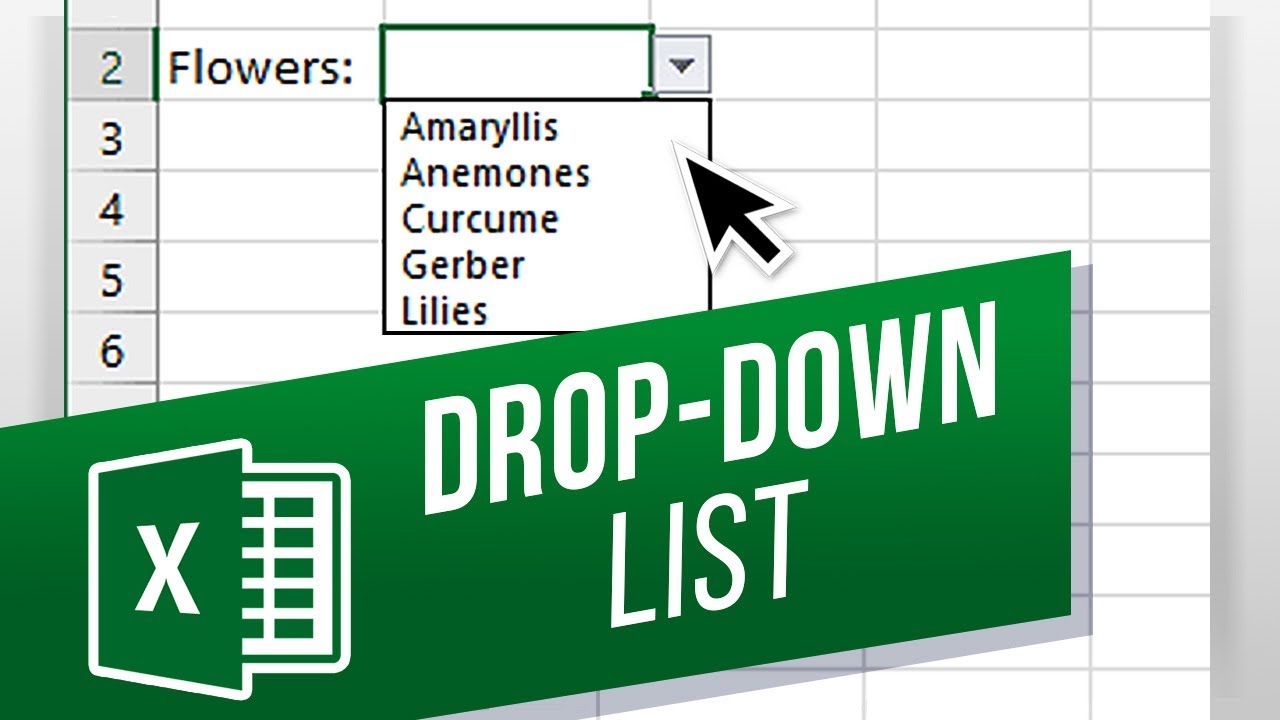
Drop-down lists are handy in Excel and limit the user to a few set options while giving them an easy-to-use interface to choose the option they want. If you need to create a drop-down list, but dont know how, this quick and easy tutorial is for you.
We will go through the steps to create a drop-down list in Excel.
First, type in the data you want to be shown as options for the user to choose in the drop-down list (e. g. Eggs, Milk, etc. For a more professional look, type the data in a separate sheet.
Go to the main sheet and select a cell you want to be the drop-down list.
Go under the Data tab at the top and click Data Validation in the Data Tools group.
In the Allow: box under Validation criteria and Settings, choose List and make sure In-cell dropdown is checked.
Click in the Source box, then navigate to the sheet containing the data and select the range of data there.
Click OK and you should now see an arrow appear next to the selected cell. Clicking the arrow will open the drop-down list.
Using drop-down lists is an easy way to have the user choose from a number of preset options.
What other Excel features do you want to know about? Date: 2023-07-08