How to Alphabetize Data by Sorting in Google Sheets to Organize Data
FBTwitterReddit
video description
Rating: 4.0; Vote: 1
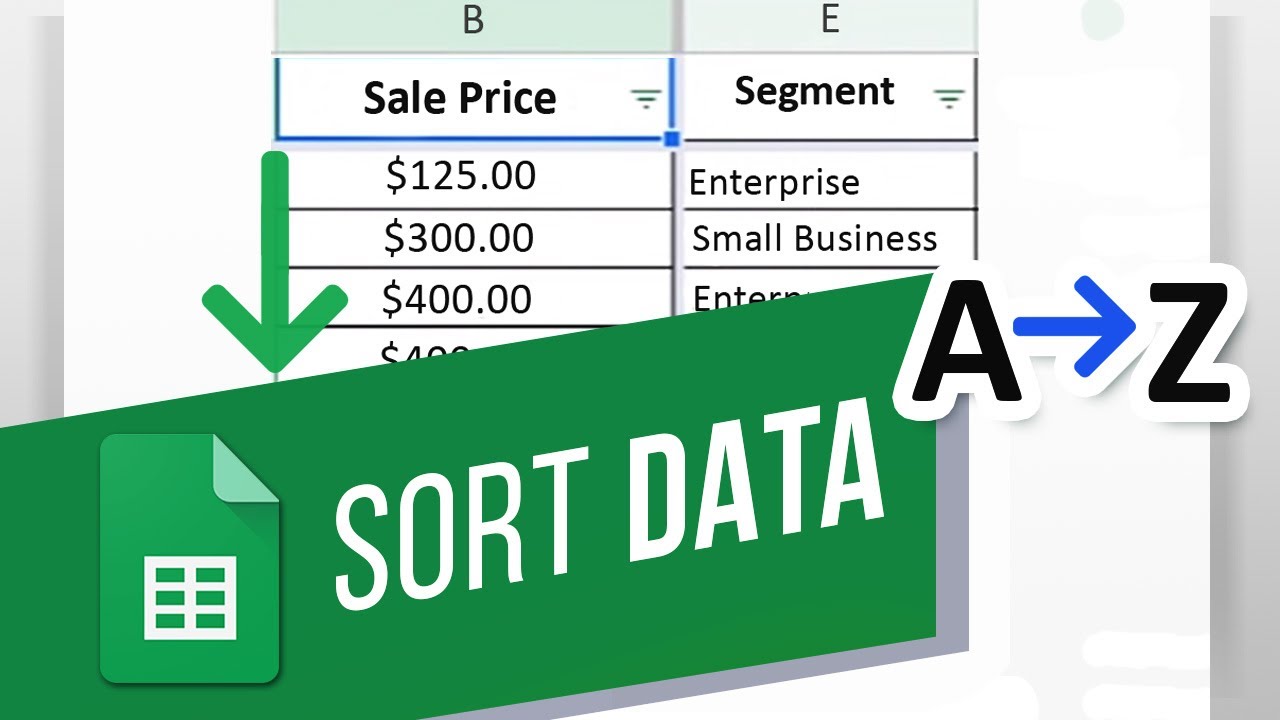
we will show you how to sort data in Google Sheets.
The Sort option is present in the Data menu here and allows you to sort the data in the sheet, according to a specific range and in ascending or descending order.
We have an employee sheet opened up over here detailing sales so far in the year. Lets say we want to sort the data alphabetically, according to the segment column right here and then numerically in descending order according to the Total Sales column here.
We want the entire data in the sheet to be sorted. So lets select all the columns and all the rows with the data present. Now, lets begin with sorting the data.
Move to the Data menu and click on the Sort Range option.
You can see that our data has a header row at the top. To not include those cells in the sorting range, lets click on this checkbox here.
Now, first we want to sort the data according to the Segment column here.
For that, lets open up the Sort By drop down menu and click on the Segment option. You can choose whether to sort the data in ascending or descending order.
Lets keep it in ascending order and click on Sort.
Now you can see that all the data in the sheet has been sorted according to the Segment the sale was made in.
We can add more columns while sorting the data. Lets head back to the last example.
Here lets sort the entire data according to segments, while showing the total sales in descending order for each segment.
For that, lets click on Add another sort column and from the drop down menu select Total Sales.
After that, lets click on this option for the total sales to be shown in descending order for each segment.
Lets click on Sort and you can see that Google Sheets has sorted all the data according to the segments, showing the total sales in descending order for each segment.
You can keep adding more column to sort through according to your worksheet Date: 2023-07-08