How to Enable Hibernate Option in Shut Down Menu in Windows 8.1 The Teacher
FBTwitterReddit
video description
Rating: 4.0; Vote: 1
How to Enable Hibernate Option in Shut Down Menu in Windows 8.1 The Teacher
In this Windows 8.1 Tutorial, you will learn how to enable or disable hibernate option in Windows 8 / 8.1 / 7? Windows Hibernate option is a quick way to turn off your PC, while Windows saves your all current data and application status to a single file and turn off your PC completely, thus saving power consumption.
When you turn on your PC again then instead of restarting the Windows boot process, Windows load the single hibernate file back to the computer RAM. This makes booting process much faster and resume the Windows from the same state from where you left.
In Windows 8.1 / 7 the Hibernate option could be missing from the Start Menu, Shut Down options and there could be many reasons behind it.
For Instance:
- Your Video Drivers does not support putting your computer into hibernate state or you have not installed Display Drivers.
- Misconfigured BIOS Settings or ACPI is not compatible (Mostly happens on old computers)
- Hibernate is disabled from Power Options in Control Panel.
- Hybrid Sleep is turned on, so you cannot enable hibernate at the same time. You need to turn off Hybrid Sleep so you can use Hibernate option.
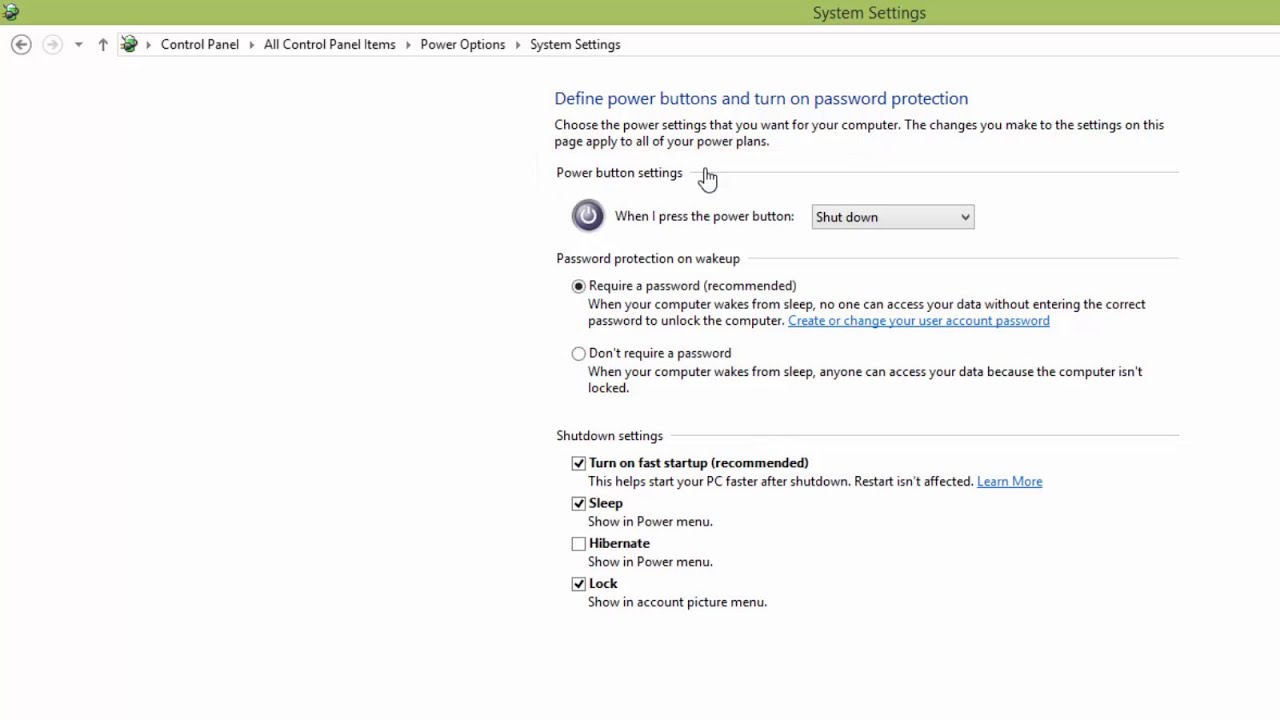
This Windows tutorial will cover, how to enable hibernate option from Power Options in Control Panel assuming your computer does not fall into any above stated reasons.
Information Applies To:
Windows 7
Windows 8 / 8.1
Windows 10
Subscribe Us - http://www.youtube.com/theteacher
Circle Us - http://www.google.com/+theteacher
Visit Us - http://www.theteacherpoint.blogspot.com
Follow Us - http://www.facebook.com/bemyteacher
Muzammil: If Hibernate Option No Showing How We Enable I Have No Option To Check HIbernate I Have Just Sleep And Lock How to Add hibernate Date: 2022-03-31