• Vehicles • Fashion • Recipes • Blogs • Hunt • Travels • Sport • Fun • Handmade • IT • Education
Mini-Games
x

x
zakruti.com » IT - Software » Geeks Tutorial
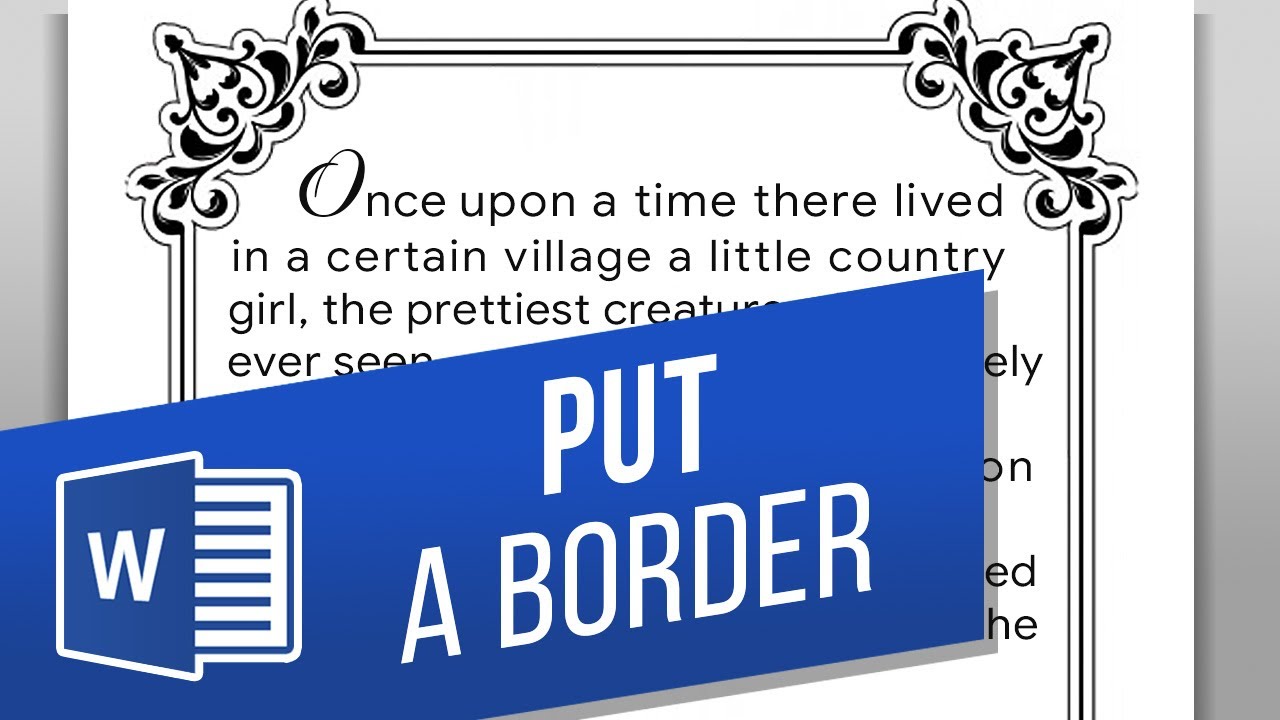
How to Add Border to a Page in MS Word How to Add a Border to an Entire Page in Word

How to Add Border to a Page in MS Word How to Add a Border to an Entire Page in Word

FBTwitterReddit

video description

Rating: 4.0; Vote: 1
well be showing you how to add a border to a page in Microsoft Word. Page borders are borders around the entire page. If you want to add page borders to your document, well show you how to do it! Lets add a page border to this document. 1. Click the Design tab at the top. 2. On the far right, click Page Borders. 3. For this example, were going to make a Shadow border. Click Shadow on the left, choose a style, a color, a width, or even artwork. 4. By clicking these toggles on the right you can choose which edges are bordered. 5. You can apply the border to the whole document or specific pages. Well just leave this at default for now. 6. Finally, click OK. 7. The border we made is applied to the entire document. Page borders are a great way to grab attention and focus it into the document, and now you know how to make them! What kind of documents will you make page borders on?
Date: 2023-07-08

Comments and reviews: 2


The only way to make an image border is to manually copy, paste, and adjust the image. correct? I don't find the pre-sets useful.
reply

You made an amazing video. Thank you so much. Please keep up the good work. This video was straight to the point. No time waste.
reply
Add a review, comment


Other channel videos