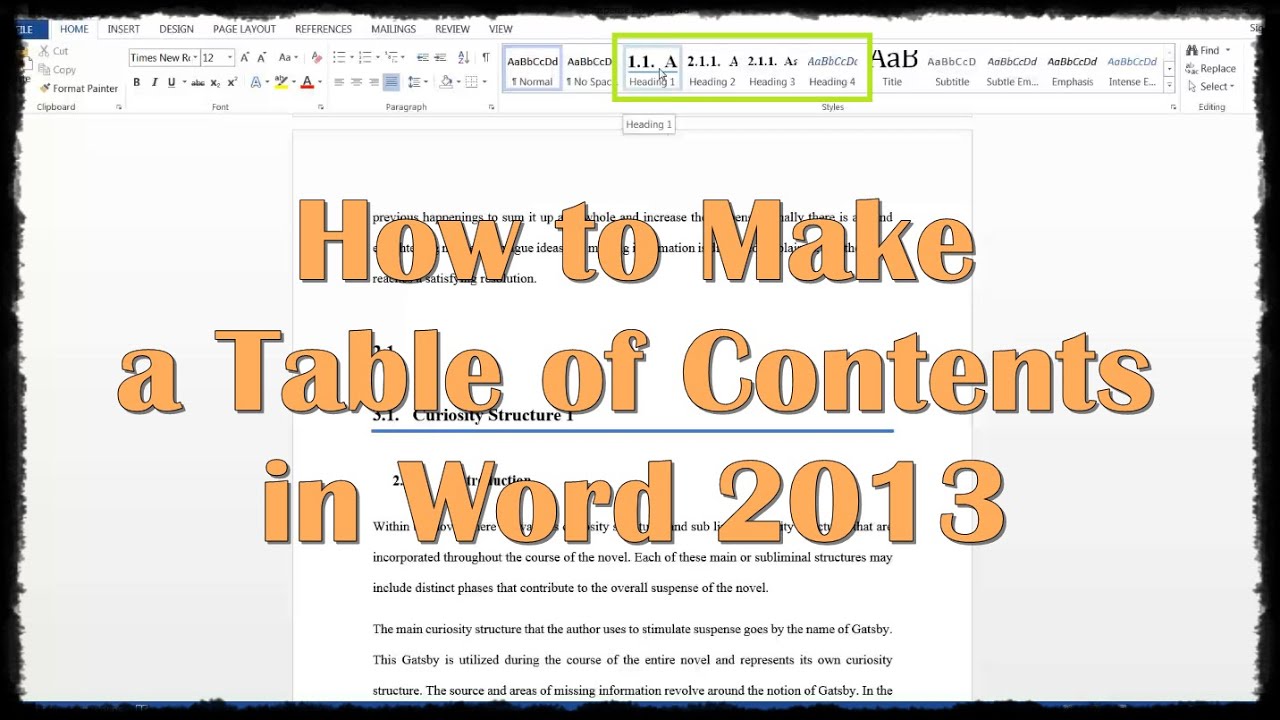
were going to show you how to create a table of contents in Word 2013.
If you have a research paper lengthy enough for a table of contents, or a chaptered book, then we got you covered.
- join us on Facebook
This tutorial will cover an automatic table of contents for fast updating and no pesky manual work.
All of your chapters/sections need Headings so Word knows what you want in the TOC (table of contents)
Heading 1 should be your main or largest section title, Heading 2 a subsection, and so on. Though this tutorial doesnt cover it, you can edit a Heading by right-clicking and selecting Modify
Go ahead and create some Headings. Curiosity Structure 1 has the Heading 1 style, and Introduction has the Heading 2 style
Go to References on the ribbon, click Table of Contents and lets take a look at the Custom Table of Contents
Change the Show levels to however many Headings you will use, in this case only three
If for some reason your main title is not Heading 1 or something else is incorrect, you can change the Heading to the corresponding TOC level (1 - main, 2 - subsection, etc)
If you go to Modify, you can change how each TOC level will look like in the actual TOC
After you finish Modifying the TOC levels to get what you want, hit OK
Our TOC should be completed
If you ever add more sections or take away some, you will need to update your table. To do so, click Update Table, then select Update Entire Table and hit OK Date: 2023-07-08



 2:17
2:17