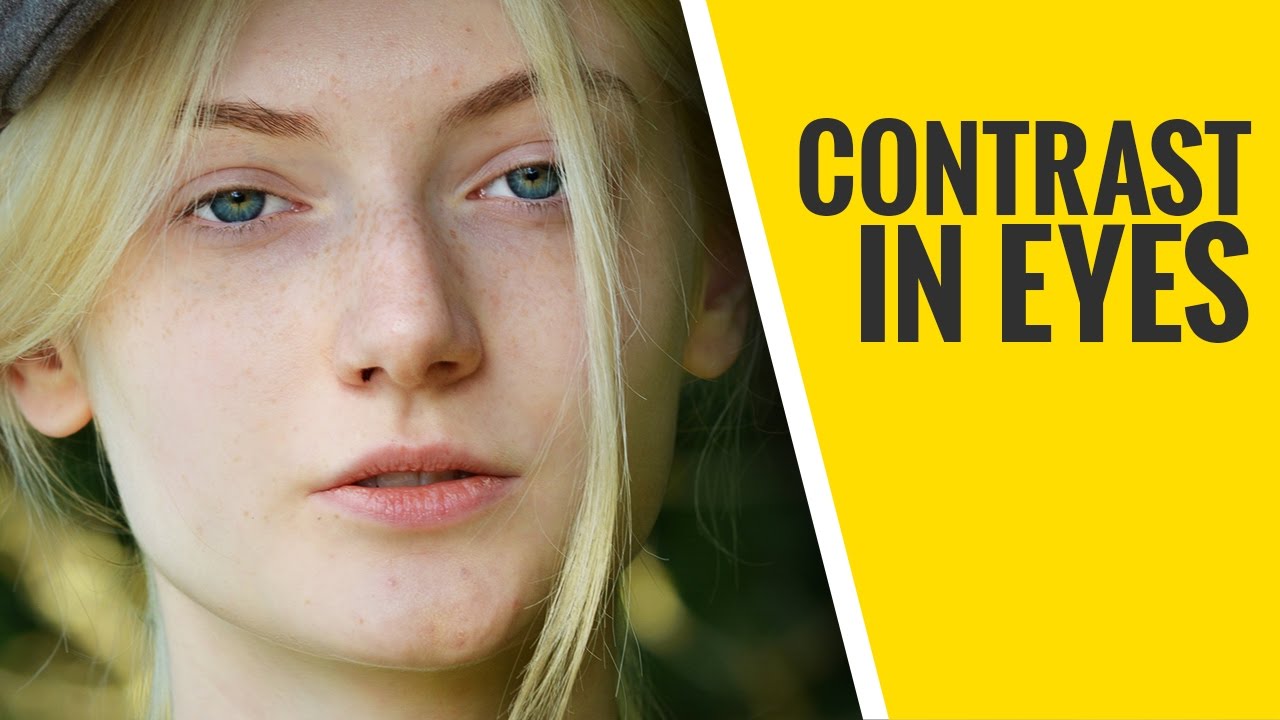
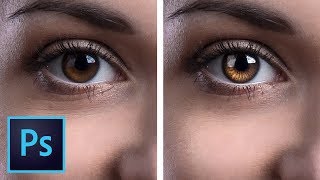
In this short video, learn how to quickly add contrast to eyes in Photoshop. Though very minimal, but it forms and essential part of portrait retouching and makes a significant difference in making the eyes more pronounced and attractive.
Adding extra contrast to eyes, helps grab attention of the viewer and also gives dimension to the eye hence making it stand out. In this tutorial we will perform this very easily just by using blend modes. It is also essential that we apply the effect subliminally so as to retain the natural essence of the eye
Kim: Great vid as always! Do you ever use the quick mask tool? You can shorten this workflow by a few steps (and many others) by using it. (E. g. First select a soft black brush at 100% opacity, click on the quick mask tool at the bottom of the tool palette (current layer in the layers palette turns gray indicating that quick mask mode has been activated, with your soft, black brush paint the area of the image you want affected by the adjustment you will be making, then click the quick mask tool AGAIN, (which is the step that makes the selection and exits the quick mask mode, click on desired adjustment layer and proceed. This enables you to create the mask first thus saving a few steps. Just wanted to share as this is something that has made my workflow more efficient when making localized adjustments: ) Date: 2022-07-19