Increase Blur to Sharpen Better? Photoshop Trick
video description
Date: 2022-07-19
Related videos




Comments and reviews: 19
Yann
I use an almost similar technique but I just use Linear Light layer blending on the layer group containing the copy of the original picture with on top the inverted modified picture at 50% opacity with normal layer blending. Basically, what it does is create a layer of the difference between two pictures with the 50% gray areas representing the untouched parts.
This trick has so much more possibilities than just sharpening a picture, you just have to keep in mind that the result will be the opposite of the PS filter or effect you applied on the modification layer. For example, if you use a Surface Blur, you will obtain a Surface Sharpen (sharpening only smaller details on surfaces without touching the already existing higher contrast details. It can also work to a degree on color correction, saturation, contrast, etc. The principle is conter-intuitive at first because you have to accentuate the picture defaults to reduce them. I know it sounds weird, but sometimes it gives you better results than trying to directly work on the problem. Also, rather than using a mask on your modification layer group, you can paint the areas that you dont want to be affected by it with 50% gray, which by using darken or lighten blend mode on your brush allows you to really fine tune your effect. You can also play on the saturation, contrast, etc. as long as the 50% gray middle value rests as it is.
But the real powerful aspect of this trick is that you can also use it to make picture compositions.
Lets say for example that youd like to transfer a tattoo on someones skin to another character: start by making a copy of the character with the tattoo and use your PS prefered tools and skills to remove the tattoo, with bare skin instead of it. Now, invert the picture and put the layer at 50% opacity on top of the original picture. That leaves you with a difference image of just the tattoo that you can put on top of the other character with Linear Light layer blend mode. Additional tip: make a smart object of your linear light modification layer (or just flatten it) and use surface blur to remove unwanted artifacts around the tattoo. Keep in mind though that it has its limits: the target area must have an overall similar aspect than the source area, otherwise it will require a lot more work to make it unnoticeable.
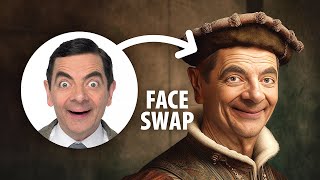
It also works great for things like droplets on a glass, textures, even smoke or fire. I even have successfully used it for swapping whole faces The principle is the same: make a copy of the source and use your best techniques to remove the details you want to transfer, invert the picture, make it 50% opacity on the original source, and you have your difference layer that you can apply with Linear light on your target picture.
Other advantages: you can duplicate this modification layer if you want the effect to be stronger, cumulate with another one and last but not least: this trick works on After Effects too
reply
I use an almost similar technique but I just use Linear Light layer blending on the layer group containing the copy of the original picture with on top the inverted modified picture at 50% opacity with normal layer blending. Basically, what it does is create a layer of the difference between two pictures with the 50% gray areas representing the untouched parts.
This trick has so much more possibilities than just sharpening a picture, you just have to keep in mind that the result will be the opposite of the PS filter or effect you applied on the modification layer. For example, if you use a Surface Blur, you will obtain a Surface Sharpen (sharpening only smaller details on surfaces without touching the already existing higher contrast details. It can also work to a degree on color correction, saturation, contrast, etc. The principle is conter-intuitive at first because you have to accentuate the picture defaults to reduce them. I know it sounds weird, but sometimes it gives you better results than trying to directly work on the problem. Also, rather than using a mask on your modification layer group, you can paint the areas that you dont want to be affected by it with 50% gray, which by using darken or lighten blend mode on your brush allows you to really fine tune your effect. You can also play on the saturation, contrast, etc. as long as the 50% gray middle value rests as it is.
But the real powerful aspect of this trick is that you can also use it to make picture compositions.
Lets say for example that youd like to transfer a tattoo on someones skin to another character: start by making a copy of the character with the tattoo and use your PS prefered tools and skills to remove the tattoo, with bare skin instead of it. Now, invert the picture and put the layer at 50% opacity on top of the original picture. That leaves you with a difference image of just the tattoo that you can put on top of the other character with Linear Light layer blend mode. Additional tip: make a smart object of your linear light modification layer (or just flatten it) and use surface blur to remove unwanted artifacts around the tattoo. Keep in mind though that it has its limits: the target area must have an overall similar aspect than the source area, otherwise it will require a lot more work to make it unnoticeable.
It also works great for things like droplets on a glass, textures, even smoke or fire. I even have successfully used it for swapping whole faces The principle is the same: make a copy of the source and use your best techniques to remove the details you want to transfer, invert the picture, make it 50% opacity on the original source, and you have your difference layer that you can apply with Linear light on your target picture.
Other advantages: you can duplicate this modification layer if you want the effect to be stronger, cumulate with another one and last but not least: this trick works on After Effects too
reply
Glenn
Interesting stuff. This reinforces to me just how primitive are my skills with PS!
Incidentally, Gaussian is pronounced GOW see an, being named after Gauss (rhyming closely with 'house'. If I was not watching the filter you pointed to while viewing this on my phone's screen, it would have taken me longer to figure out what filter was being called Gawshen. :D
Cheers! And again, thank you for opening my eyes to a more powerful sharpening method.
reply
Interesting stuff. This reinforces to me just how primitive are my skills with PS!
Incidentally, Gaussian is pronounced GOW see an, being named after Gauss (rhyming closely with 'house'. If I was not watching the filter you pointed to while viewing this on my phone's screen, it would have taken me longer to figure out what filter was being called Gawshen. :D
Cheers! And again, thank you for opening my eyes to a more powerful sharpening method.
reply
David
For what its worth, this Vivid Light technique works perfectly with the VERY LIMITED Photoshop for iPad. The iPad version has just the necessary filters and tools necessary to make it happen. For all of us waiting patiently for Adobe to give us a real mobile workflow experience on iOS, being able to use this technique gets us one step closer. I use it all the time now. Thank you Unmesh!
reply
For what its worth, this Vivid Light technique works perfectly with the VERY LIMITED Photoshop for iPad. The iPad version has just the necessary filters and tools necessary to make it happen. For all of us waiting patiently for Adobe to give us a real mobile workflow experience on iOS, being able to use this technique gets us one step closer. I use it all the time now. Thank you Unmesh!
reply
Big
We have a course called Digital Image Processing, where we were studying about 2D signal filters and a concept called Unsharp Masking. As soon as the professor started the mathematics to subtract a LPF (blurred image) from the original to get the HPF (sharp image, I rememberd this video that I had watched months ago. This is highboost filtering under unsharp masking.
reply
We have a course called Digital Image Processing, where we were studying about 2D signal filters and a concept called Unsharp Masking. As soon as the professor started the mathematics to subtract a LPF (blurred image) from the original to get the HPF (sharp image, I rememberd this video that I had watched months ago. This is highboost filtering under unsharp masking.
reply
Ryan
I watched this video ages ago and knew there would be a time that I would come back to it. This evening was that time, I went out and got lots of exposures of the moon before it got dark, then used a median stack in Photoshop to remove all the ISO noise, and then a Vivid light sharpening, and the results blew my mind! Thank you Unmesh: )
reply
I watched this video ages ago and knew there would be a time that I would come back to it. This evening was that time, I went out and got lots of exposures of the moon before it got dark, then used a median stack in Photoshop to remove all the ISO noise, and then a Vivid light sharpening, and the results blew my mind! Thank you Unmesh: )
reply
Dmitri
If it is not too much trouble, could you please share your personal opinion: which sharpening looks better: DxO PureRAW's or Topaz Sharpen AI?
I see a problem in the fact that sharpening in DxO PureRAW is taking place among pre-processing steps - not in the end. And, there seems to be no way to cancel that step.
reply
If it is not too much trouble, could you please share your personal opinion: which sharpening looks better: DxO PureRAW's or Topaz Sharpen AI?
I see a problem in the fact that sharpening in DxO PureRAW is taking place among pre-processing steps - not in the end. And, there seems to be no way to cancel that step.
reply
NutKracker215
I'm using an ancient PS, don't have the tools to do what you are doing however on my quest to convert low resolution family photo's to a high resolution, this tip helped alot in a process I created through several different other methods of sharpening photo's. Thank you sir!
reply
I'm using an ancient PS, don't have the tools to do what you are doing however on my quest to convert low resolution family photo's to a high resolution, this tip helped alot in a process I created through several different other methods of sharpening photo's. Thank you sir!
reply
Nigel
Hey Unmesh, I am currently doing a lot of low light concert photography. I am doing some sharpening on my images. Currently I denoise them with topaz and then sharpen them with HPF is this the best way to deal with noise? Thanks for the great tutorials!
reply
Hey Unmesh, I am currently doing a lot of low light concert photography. I am doing some sharpening on my images. Currently I denoise them with topaz and then sharpen them with HPF is this the best way to deal with noise? Thanks for the great tutorials!
reply
Carlos
Sorry, I'm confused why vivid light change the color to gray? there's some color do not turn into gray, right? and why those color not to be effected through overlay? if there's someone can explain it for me, I'll appreciate!
reply
Sorry, I'm confused why vivid light change the color to gray? there's some color do not turn into gray, right? and why those color not to be effected through overlay? if there's someone can explain it for me, I'll appreciate!
reply
Erwin
It also adds a lot of noise compared to the high pass. I'd go with the high pass unless you absolutely need to use this technique and probably mask it anyway and except for the contours I'd mask those areas out.
reply
It also adds a lot of noise compared to the high pass. I'd go with the high pass unless you absolutely need to use this technique and probably mask it anyway and except for the contours I'd mask those areas out.
reply
Lee
I wish I could get these videos for the GIMP software. Seriously though, if this is about technique then it should be universal. So why shill for a niche market of grossly expensive proprietary software?
reply
I wish I could get these videos for the GIMP software. Seriously though, if this is about technique then it should be universal. So why shill for a niche market of grossly expensive proprietary software?
reply
Brendan
Unmesh thank you for all you do, you are a true inspiration and amazing teacher, you make learning fun and motivational! You have taught me invaluable skills and for that again I am truly greatful!
reply
Unmesh thank you for all you do, you are a true inspiration and amazing teacher, you make learning fun and motivational! You have taught me invaluable skills and for that again I am truly greatful!
reply
SiliconFix
Strangely enough, I've used this technique when making minecraft heightmaps, in order to preserve real satellite image accuracy when importing a map image into world editor
reply
Strangely enough, I've used this technique when making minecraft heightmaps, in order to preserve real satellite image accuracy when importing a map image into world editor
reply
AsgaiaMetal
Why not use the unsharp mask filter. It does this, too.
And its called unsharp mask because it came from the analoge world where an unsharp negative was used.
reply
Why not use the unsharp mask filter. It does this, too.
And its called unsharp mask because it came from the analoge world where an unsharp negative was used.
reply
Werner
This video is not only useful and maybe sometimes a life saver but it also shows real, real expertise and cleverness. Wow! Greetings from Europe and a big Thanks!
reply
This video is not only useful and maybe sometimes a life saver but it also shows real, real expertise and cleverness. Wow! Greetings from Europe and a big Thanks!
reply
Real
Following this and so far it appears high pass works better for mine because i can put it at higher passes than the gaussianan blur without the posterizing
reply
Following this and so far it appears high pass works better for mine because i can put it at higher passes than the gaussianan blur without the posterizing
reply
BIG
wanting to do my own ambient soft and am having an issue finding a soft witNice tutorialn the program wNice tutorialch works for the MAIN soft I'm
reply
wanting to do my own ambient soft and am having an issue finding a soft witNice tutorialn the program wNice tutorialch works for the MAIN soft I'm
reply
michael
I followed each step. It doesnt allow me to click concert for smart filters at the step you did. Its greyed out and not an option
reply
I followed each step. It doesnt allow me to click concert for smart filters at the step you did. Its greyed out and not an option
reply
Animal
sharpening is done, but I see noise after the process done, is there any video tutorial of you about changing one photo's noise?
reply
sharpening is done, but I see noise after the process done, is there any video tutorial of you about changing one photo's noise?
reply
Add a review, comment
Other channel videos